> ## Documentation Index
> Fetch the complete documentation index at: https://docs.scrapegraphai.com/llms.txt
> Use this file to discover all available pages before exploring further.
# Firefox
> Extract data from any webpage directly in your browser
 ## Overview
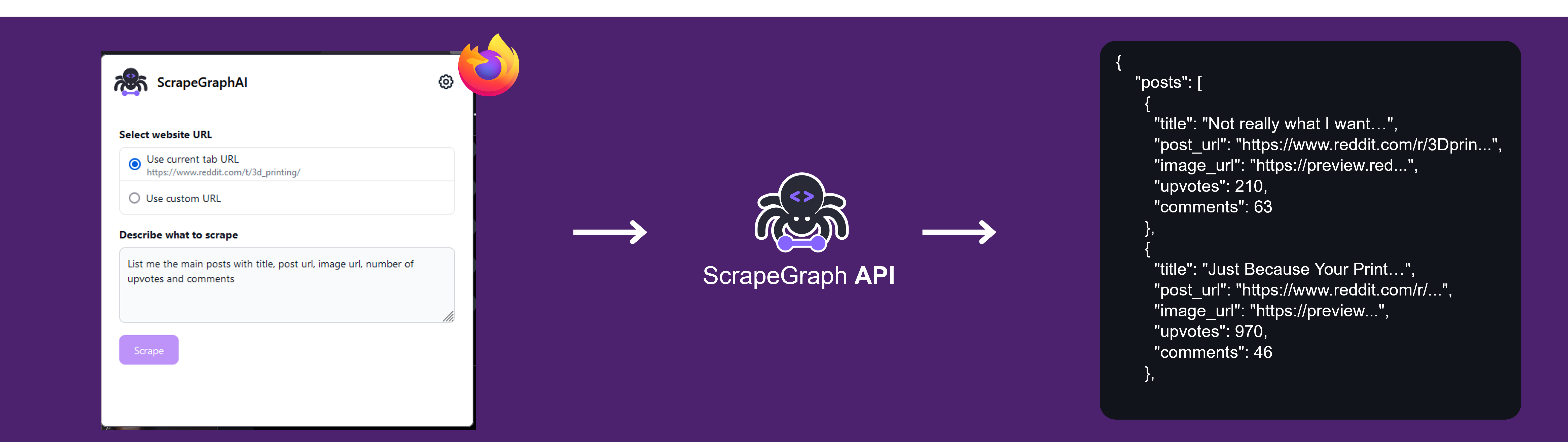
The ScrapeGraphAI Firefox Extension brings the power of our AI-driven data extraction directly to your browser. With a simple prompt, you can extract structured data from any webpage you're visiting, making web research and data collection effortless.
Install the extension from the [Firefox Add-ons Store](https://addons.mozilla.org/en-US/firefox/addon/scrapegraphai-extension/)
## Overview
The ScrapeGraphAI Firefox Extension brings the power of our AI-driven data extraction directly to your browser. With a simple prompt, you can extract structured data from any webpage you're visiting, making web research and data collection effortless.
Install the extension from the [Firefox Add-ons Store](https://addons.mozilla.org/en-US/firefox/addon/scrapegraphai-extension/)
 ## Key Features
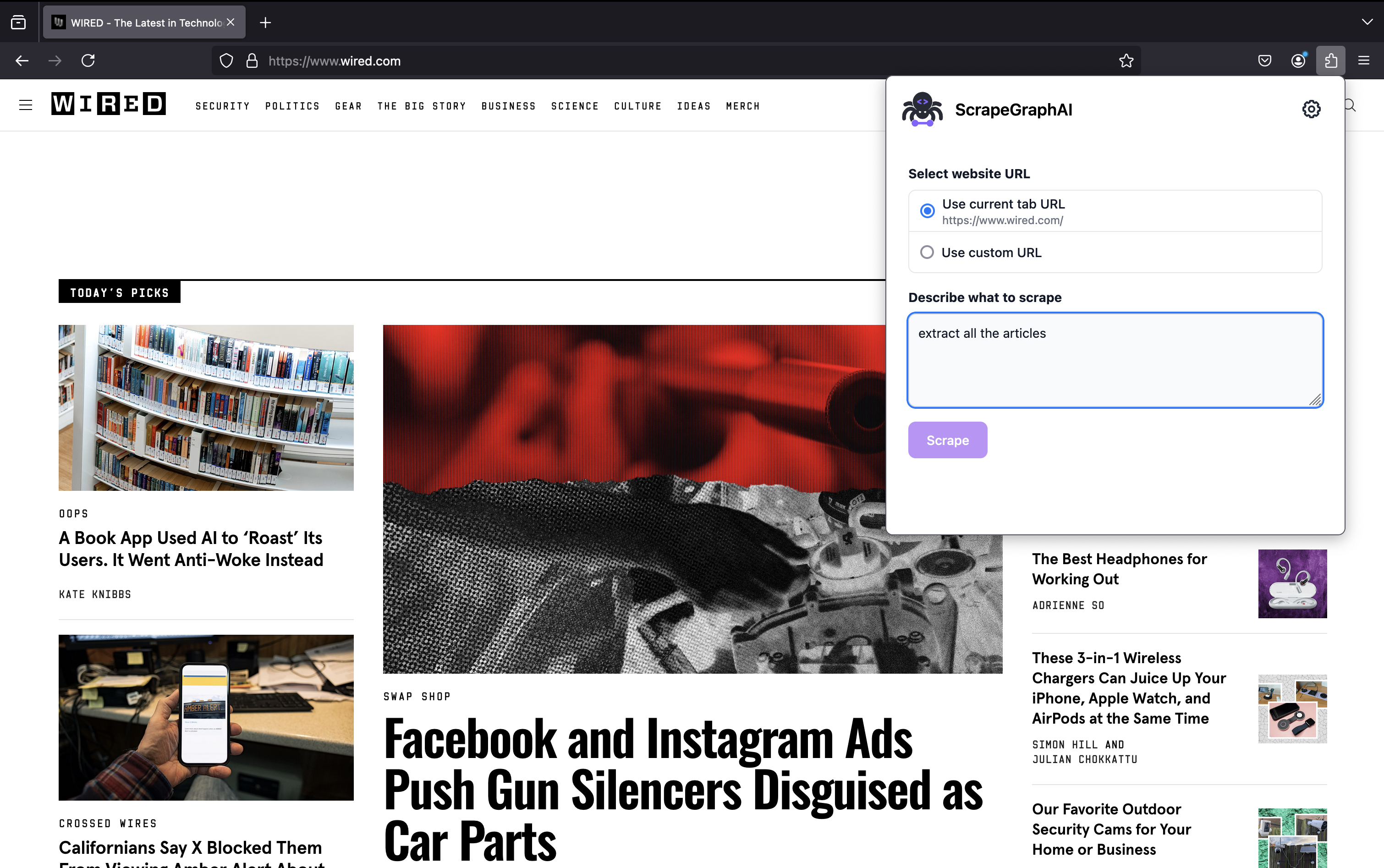
Extract data from any webpage with a single click
Describe what you want to extract in plain English
Get clean, structured JSON data
Seamless integration with your browsing experience
## Getting Started
### API Key Setup
First, you'll need to get your ScrapeGraphAI API key:
## Key Features
Extract data from any webpage with a single click
Describe what you want to extract in plain English
Get clean, structured JSON data
Seamless integration with your browsing experience
## Getting Started
### API Key Setup
First, you'll need to get your ScrapeGraphAI API key:
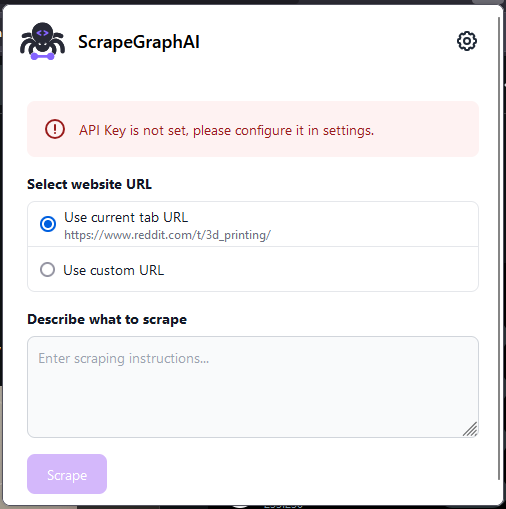 1. Get your API key from the [dashboard](https://scrapegraphai.com/dashboard)
2. Click the ScrapeGraphAI icon in your toolbar
3. Enter your API key in the settings
4. Click Save to store your API key securely
### Usage
Once your API key is set up, you can start extracting data:
1. Get your API key from the [dashboard](https://scrapegraphai.com/dashboard)
2. Click the ScrapeGraphAI icon in your toolbar
3. Enter your API key in the settings
4. Click Save to store your API key securely
### Usage
Once your API key is set up, you can start extracting data:
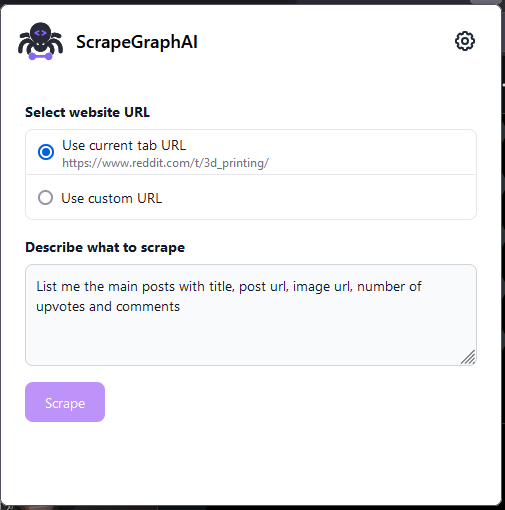 1. Navigate to any webpage you want to extract data from
2. Click the ScrapeGraphAI icon in your toolbar
3. Enter your prompt describing what information you want to extract
4. Click Extract to receive structured JSON data based on your prompt
### Example: Reddit Posts Extraction
Here's an example of extracting posts from Reddit:
```text theme={null}
"List me all the posts in the page, extracting title, post url, image url, upvotes and comments"
```
The extension will return structured JSON data like this:
```json theme={null}
{
"posts": [
{
"title": "Example Reddit Post Title",
"post_url": "https://reddit.com/r/example/post1",
"image_url": "https://i.redd.it/example1.jpg",
"upvotes": 1234,
"comments": 56
},
{
"title": "Another Reddit Post",
"post_url": "https://reddit.com/r/example/post2",
"image_url": "https://i.redd.it/example2.jpg",
"upvotes": 789,
"comments": 23
}
// ... more posts
]
}
```
## Example Use Cases
### Research
* Extract company information
* Gather product details
* Collect article data
* Compile contact information
### Data Collection
* Market research
* Competitive analysis
* Content aggregation
* Price monitoring
### Personal Use
* Save article summaries
* Extract recipe ingredients
* Compile reading lists
* Save product comparisons
## Example Prompts
Here are some example prompts you can use with the extension:
```text theme={null}
"Extract the main article content, author, and publication date"
"Get all product information including price, features, and specifications"
"Find all contact information including email, phone, and social media links"
"Extract company information including location, size, and industry"
```
## Best Practices
### Writing Effective Prompts
1. Be specific about what you want to extract
2. Include all relevant fields in your prompt
3. Use clear, natural language
4. Consider the structure of your desired output
### Tips for Better Results
* Wait for the page to load completely before extraction
* Ensure you have access to all content you want to extract
* Use specific terminology when requesting technical information
* Review the extracted data for accuracy
## Privacy & Security
* The extension only accesses webpage content when explicitly triggered
* Data is processed securely through ScrapeGraphAI's servers
* No personal browsing data is stored or tracked
* Complies with Mozilla's privacy requirements
## Support & Resources
Comprehensive guides and tutorials
Join our Discord community
Check out our open-source projects
Get help with the extension
Install the Firefox extension now and start extracting data with ease!
1. Navigate to any webpage you want to extract data from
2. Click the ScrapeGraphAI icon in your toolbar
3. Enter your prompt describing what information you want to extract
4. Click Extract to receive structured JSON data based on your prompt
### Example: Reddit Posts Extraction
Here's an example of extracting posts from Reddit:
```text theme={null}
"List me all the posts in the page, extracting title, post url, image url, upvotes and comments"
```
The extension will return structured JSON data like this:
```json theme={null}
{
"posts": [
{
"title": "Example Reddit Post Title",
"post_url": "https://reddit.com/r/example/post1",
"image_url": "https://i.redd.it/example1.jpg",
"upvotes": 1234,
"comments": 56
},
{
"title": "Another Reddit Post",
"post_url": "https://reddit.com/r/example/post2",
"image_url": "https://i.redd.it/example2.jpg",
"upvotes": 789,
"comments": 23
}
// ... more posts
]
}
```
## Example Use Cases
### Research
* Extract company information
* Gather product details
* Collect article data
* Compile contact information
### Data Collection
* Market research
* Competitive analysis
* Content aggregation
* Price monitoring
### Personal Use
* Save article summaries
* Extract recipe ingredients
* Compile reading lists
* Save product comparisons
## Example Prompts
Here are some example prompts you can use with the extension:
```text theme={null}
"Extract the main article content, author, and publication date"
"Get all product information including price, features, and specifications"
"Find all contact information including email, phone, and social media links"
"Extract company information including location, size, and industry"
```
## Best Practices
### Writing Effective Prompts
1. Be specific about what you want to extract
2. Include all relevant fields in your prompt
3. Use clear, natural language
4. Consider the structure of your desired output
### Tips for Better Results
* Wait for the page to load completely before extraction
* Ensure you have access to all content you want to extract
* Use specific terminology when requesting technical information
* Review the extracted data for accuracy
## Privacy & Security
* The extension only accesses webpage content when explicitly triggered
* Data is processed securely through ScrapeGraphAI's servers
* No personal browsing data is stored or tracked
* Complies with Mozilla's privacy requirements
## Support & Resources
Comprehensive guides and tutorials
Join our Discord community
Check out our open-source projects
Get help with the extension
Install the Firefox extension now and start extracting data with ease!